
Launch the Fabric profile that contains Wurst, press Right Shift to open Navigator, search for WurstLogo, and toggle it off. If you use ClickGUI instead, open its UI Settings and look for the same WurstLogo option. The change affects the active profile; it does not uninstall Wurst or change other modules.
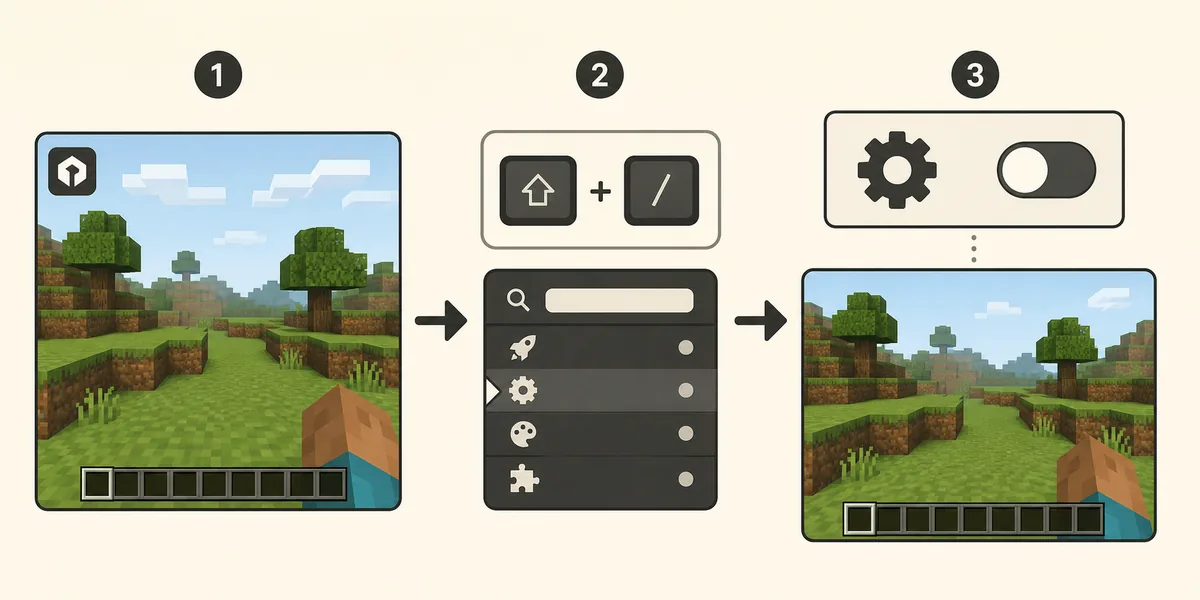
How to hide the Wurst Client logo in one minute
This is a settings change, not a download task. Start Minecraft with the Wurst and Fabric files that belong to the same profile, enter a world, and use Navigator to find the built-in WurstLogo feature. The name may look like a module, but it controls the small Wurst mark rendered in the upper-left corner of the game view.
The shortest reliable path is: open Navigator, type WurstLogo, select the result, and turn it off. Keep the change isolated to a test profile first. If you later switch instances or reset the client configuration, the logo can return because each profile stores its own settings.
- Start the matching Fabric profile and enter a single-player test world.
- Press Right Shift to open Navigator. If that key is unavailable, use your current Navigator keybind from Wurst settings.
- Type WurstLogo into the search field and select the feature.
- Toggle the feature off, then close Navigator with Escape.
- Look at the upper-left corner of the game view to confirm that the logo is gone.
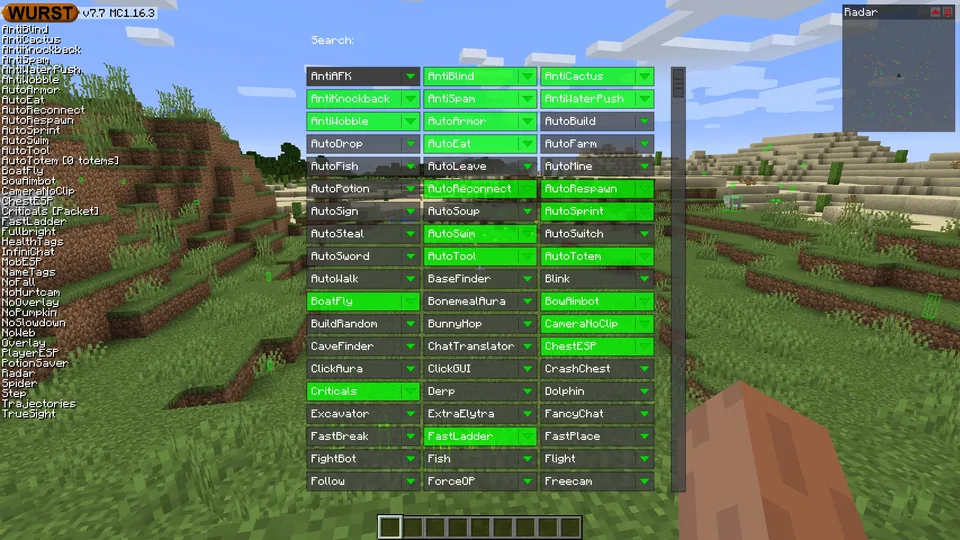
Open Navigator and find WurstLogo
Navigator is the safest route for this small change because it searches the features available in the installed Wurst build. Pressing Right Shift is the Wurst 7 default, but a laptop layout, another mod or a custom keybind can intercept it. If nothing opens, check the active profile before changing files.
Once Navigator is visible, type the feature name rather than scrolling through every category. Search is useful here because WurstLogo is a display feature, not a combat, movement or render module that you would normally identify from a category list. Select the matching result and read the feature name before toggling it.
Older screenshots can show a different Navigator layout, and the exact spacing or colors may change between Minecraft versions. The important evidence is the feature name and its enabled state, not a pixel-for-pixel match with an old image.
Disable WurstLogo without changing other features
Turn off only WurstLogo. Do not disable the entire Wurst client, delete the configuration folder or install a third-party menu unlocker. A single feature toggle is easier to reverse and makes it clear what changed when you restart Minecraft.
ClickGUI can expose the same setting through its UI Settings area. If you prefer a window-based menu, open ClickGUI with its current keybind, open UI Settings, and choose WurstLogo. Navigator is still the better troubleshooting path when you are unsure which key or category contains the option.
The WurstLogo setting is separate from HackList and other overlays. Hiding the logo should not be described as hiding every visible client indicator. If another list, watermark or mod overlay remains, identify that feature separately instead of repeatedly toggling WurstLogo.
| Check | Expected result | If it differs |
|---|---|---|
| Search result | Navigator shows WurstLogo | Confirm the correct Fabric profile is running |
| Feature state | WurstLogo is disabled | Select the result before changing the toggle |
| Game view | The upper-left Wurst mark disappears | Close and reopen the screen, then inspect the active instance |
| Other overlays | Unrelated features keep their own state | Use the feature's own setting instead of deleting all config |
Confirm that only the logo changed
Return to the game view and check the same corner where the logo appeared. Move around or open a simple menu if necessary; the goal is to confirm a display change, not to test every Wurst feature. A clean single-player world makes this check easier because server resource packs and other overlays cannot confuse the result.
If the logo is still visible, first make sure you changed WurstLogo rather than a similarly named visual option. Then close Minecraft normally, launch the same instance again and verify that the setting persists. Avoid copying a configuration file from a different Minecraft version just to remove one display element.
If the setting works in one profile but not another, that is expected when the profiles have separate game directories. Record which instance you changed and repeat the same Navigator steps only where you actually want the logo hidden.
If WurstLogo is missing or the logo returns
A missing Navigator usually points to the wrong launcher profile, a key conflict or an installation that did not load Wurst. Confirm the title screen and in-game environment are using the intended Fabric instance. The installation guide covers matching the Wurst JAR, Fabric Loader and Fabric API before you troubleshoot a setting.
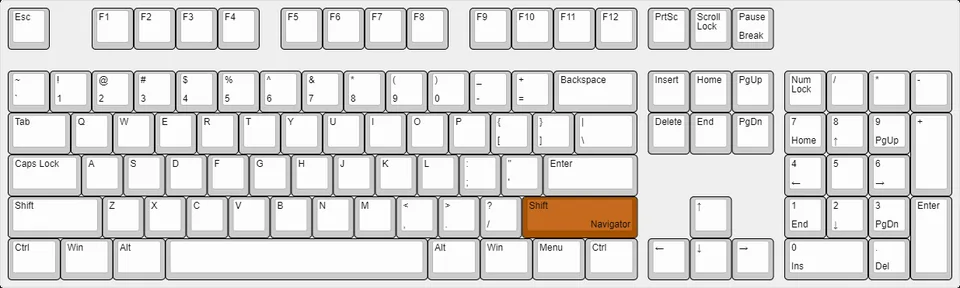
If Right Shift does nothing, open Wurst's keybind controls from another available interface or check the controls for a custom Navigator binding. Laptop keyboards and recording, voice-chat or overlay software can claim the same key. Do not assume the JAR is broken until the active keybind and profile are confirmed.
If WurstLogo reappears after changing Minecraft versions, you probably changed a different instance or started a profile with a fresh configuration. Use one instance per version where possible, and make a backup before editing or resetting settings.
If the feature is not available in the installed build, stop and verify the release rather than downloading a random configuration tool. Official Wurst pages and the version directory are safer references than repackaged clients that promise to remove branding.
- Wrong profile: the game is running vanilla or another Fabric instance.
- Key conflict: Right Shift is assigned to another mod or desktop tool.
- Different config: the setting was changed in another game directory.
- Outdated guide: an old screenshot may not match the current menu layout.
Version and profile notes for WurstLogo
This page was checked on August 2, 2026. The first-party Wurst-MCX2 release list showed Wurst 7.54.1 as the latest stable release, with a verified Minecraft 26.2 JAR of 1,865,681 bytes and a matching 1.21.11 build. The repository's existing version pages still use those stable release destinations.
The same release also lists 26.3 snapshot assets. A snapshot is not the same target as the stable 26.2 profile, so do not mix snapshot JARs, Fabric API files or configuration folders when following this guide. The WurstLogo idea is a client setting, but the menu you see still depends on the build and profile that actually launched.
For installation or version selection, use the site's compatible Wurst versions directory and the Minecraft 26.2 download page. For a broader explanation of Navigator, ClickGUI and keybinds, continue to the Wurst Client usage guide.
Keep the change limited to appearance
Hiding a logo changes how the client is displayed; it does not make a server permit Wurst or guarantee that any module is undetectable. Server owners set their own rules, and many servers prohibit client-side advantages. Read the rules before joining multiplayer and test unfamiliar features in a private world.
Use a licensed Minecraft account, first-party release pages and a backed-up instance. Keep Microsoft credentials out of third-party installers, and do not treat a clean-looking screen as proof that a downloaded file is safe or official.
The practical rule is simple: change one setting, verify one result and keep a way to restore the previous profile. That makes the logo change reversible and avoids unnecessary configuration loss.
How to hide the Wurst Client logo FAQ
How do I hide the Wurst Client logo?
Open Navigator with Right Shift, search for WurstLogo, and toggle that feature off. You can also find it through ClickGUI's UI Settings.
What is WurstLogo?
WurstLogo is the built-in Wurst feature that controls the Wurst mark shown in the upper-left corner of the game view.
Does hiding WurstLogo disable HackList or other overlays?
No. WurstLogo is a separate display setting. If another overlay remains, change that feature's own setting instead of deleting the whole configuration.
Why did the Wurst logo return after I hid it?
You may have launched a different Minecraft instance, reset its configuration or switched to a profile with separate settings. Repeat the change in the active profile.
Do I need a separate logo remover download?
No. The WurstLogo option is part of Wurst's interface. Avoid third-party configuration executables and repackaged clients.
Which Wurst version was checked for this guide?
First-party release data was checked on August 2, 2026. Wurst 7.54.1 was the latest stable release listed for Minecraft 26.2, while 26.3 assets were marked as snapshots.
Sources and related guides
The WurstLogo behavior, Navigator path and ClickGUI relationship were checked against first-party Wurst Wiki pages on August 2, 2026. Version and file facts were checked against the first-party Wurst-MCX2 release list; the page uses the stable release page rather than a temporary signed asset URL.