
Launch the correct Fabric profile, enter a single-player world, press Right Shift to open Navigator, search for a feature and press Enter or click it to toggle. Press Right Ctrl for ClickGUI, where features are grouped into movable category windows. Wurst commands begin with a dot, for example .help, and stay local instead of being sent to the server. Test one change at a time and follow the rules of any server you join.
How to use Wurst Client on the first launch
Confirm that the Minecraft title screen and in-game overlay show Wurst before looking for controls. If the game launches as plain vanilla, return to the launcher and select the Fabric profile that contains both the matching Wurst JAR and Fabric API. The current verified main release remains Wurst 7.54.1 for Minecraft 26.2 and 1.21.11 as checked against first-party pages on August 7, 2026.
Create a temporary single-player world for the first session. A private test world lets you learn menus and module states without risking a multiplayer rule violation or losing track of which setting caused a change. Keep the vanilla controls screen available because Wurst keybinds and ordinary Minecraft keybinds can conflict.
A useful first session only needs three actions: open Navigator, search for one feature, and turn it off again. Avoid enabling a row of combat, movement or automation modules together. If the result feels wrong, you will not know which setting caused it.
How to open the Wurst menu: Navigator versus ClickGUI
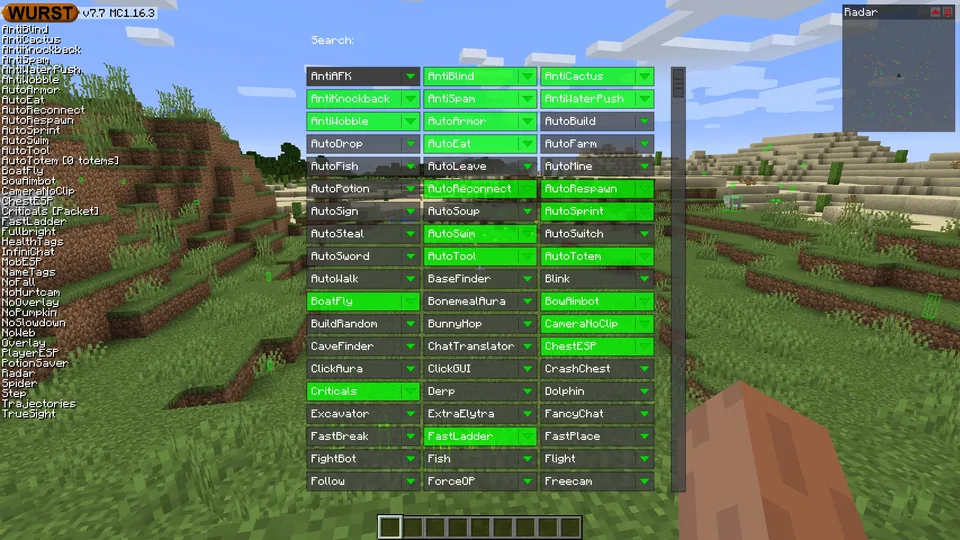
Press Right Shift for Navigator. It presents one searchable list and learns which features you use frequently. Start typing a module name, use the arrow keys to move, press Enter for the primary action, Space to expand settings and Escape to go back or close the screen.
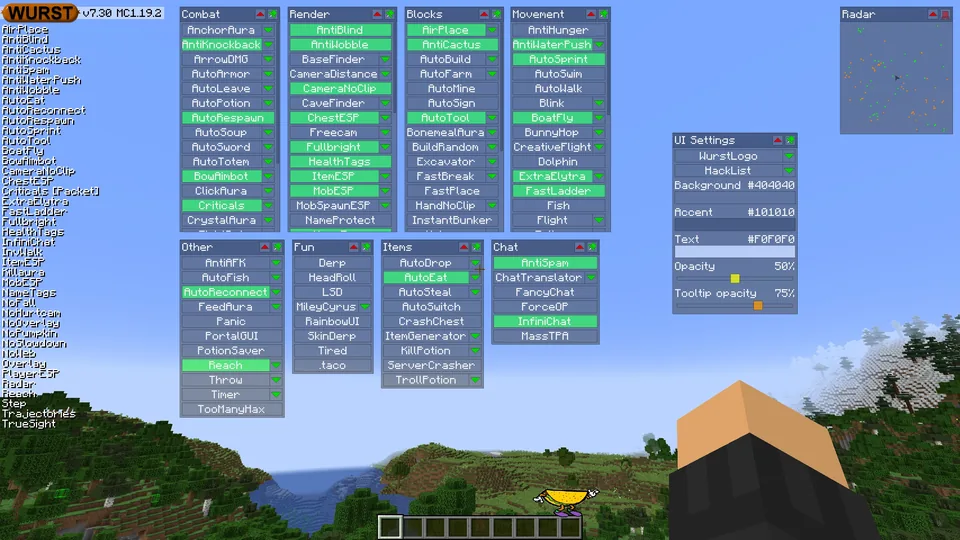
Press Right Ctrl for ClickGUI in Wurst 7. ClickGUI groups modules into category windows such as Combat, Render, Movement and Blocks. A green button means the feature is enabled. The arrow beside a feature opens its settings. Windows can be moved, minimized or pinned.
Laptop layouts, remapped keyboards and launcher overlays can intercept these keys. If one shortcut does nothing, open the other interface, search for Navigator or ClickGUI, and review its keybind. Do not reinstall until you have checked the active profile and key conflicts.
Enable modules and change Wurst settings without losing control
A module's main button toggles its primary behavior. Expand the module before using it so you can see mode selectors, distance values, filters and other limits. Defaults are not universal recommendations: a setting that works in a flat test world may behave differently around other mods, server plugins or another Minecraft version.
Use a one-change workflow. Turn on one feature, observe it, change one setting, then test again. Turn the feature off before moving to another category. This makes troubleshooting much faster than activating multiple modules and trying to reverse-engineer the result later.
Some visual modules are easier to learn than automation or movement modules because their result is immediately visible and easier to reverse. Whatever you test, keep a clean launcher instance and a backup of important worlds.
| Control | What it does | Best beginner use |
|---|---|---|
| Main button | Turns a module on or off | Verify the state changes once |
| Green arrow | Opens module settings | Read modes and limits before use |
| Search | Finds a named feature | Prefer Navigator for direct lookup |
| Pinned window | Keeps a ClickGUI panel visible | Pin only the panel you monitor |
Use Wurst Client commands correctly
Wurst commands begin with a period. Type them in Minecraft chat, but Wurst processes them locally instead of sending the message to the server. Start with .help to view available commands and syntax for the installed release. Command arguments shown inside angle brackets must be replaced; square-bracket arguments are optional.
If you need to send chat text that begins with a dot, the official Wiki documents .say as the bypass. For example, .say .help sends the literal text instead of opening Wurst help. Do not paste command lists from an old video without checking the installed release.
Commands are useful for repeatable configuration and keybind management. The interface remains safer for a new user because it exposes valid settings and current labels. When a command returns an error, read the local message and compare its syntax with the official command page.
For the complete source-checked index, syntax examples and troubleshooting, continue to the Wurst Client commands reference.
- Use
.helpas the starting point for the installed build. - Keep the leading dot; slash commands belong to Minecraft or the server.
- Replace placeholders instead of typing brackets literally.
- Use only commands you understand and test them privately first.
Change Wurst Client keybinds and avoid conflicts
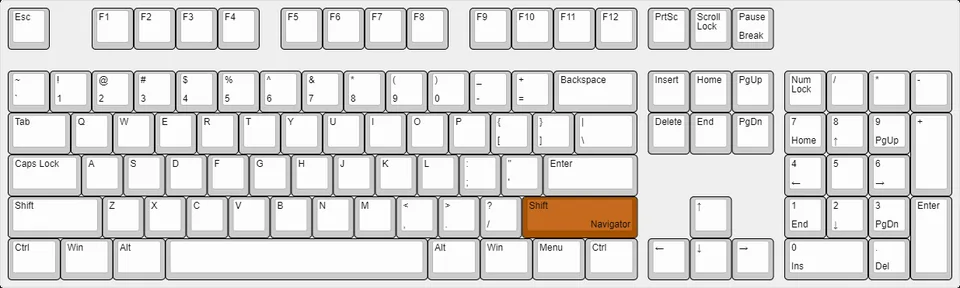
Wurst 7 defaults include Right Ctrl for ClickGUI and Right Shift for Navigator. Other defaults may toggle individual modules, which means an accidental key press can change behavior while you are playing. Review the active list before deciding that the client is malfunctioning.
Use the Keybind Manager or the official .binds workflow to inspect and change bindings. Choose keys that are not already assigned to sprint, perspective, voice chat, recording software or another mod. Test every action separately before building a multi-action bind.
Key codes changed between older Wurst generations, so bindings copied from Wurst 6 tutorials may not work in Wurst 7. Remove an unknown custom bind and recreate it through the current interface instead of editing configuration files blindly.
Save a stable setup and recover when the interface feels broken
Keep separate Minecraft instances for different game versions and mod collections. A Wurst configuration that is comfortable on Minecraft 26.2 should not be copied wholesale into an older 1.20.1 profile. Separate instances protect working settings and make version-specific errors easier to identify.
If a GUI window disappears, reopen ClickGUI, look for minimized or moved panels and check display scaling. If a key no longer opens a menu, verify the keybind in Navigator or the Keybind Manager. If modules activate unexpectedly, inspect custom and default binds before deleting the configuration.
For a clean diagnosis, close Minecraft, back up the instance, temporarily remove unrelated mods, and start with only the matching Wurst and Fabric API files. Restore other mods one at a time. Reinstallation is the last step, not the first.
If you only want to remove the corner mark, use the separate WurstLogo troubleshooting guide instead of changing unrelated display settings.
Use Wurst responsibly in single-player and multiplayer
A client feature working technically does not make it permitted on a server. Server owners define their own rules and anti-cheat systems. Read the rules before joining, and do not use automation, movement or combat advantages where they are prohibited. This guide explains controls; it does not promise that a module is allowed or undetectable.
Use a licensed Minecraft account, first-party Wurst pages and a backed-up test world. Avoid repackaged clients, credential prompts and claims that a file is undetectable or completely safe. The official Wurst project is open source, but the behavior you choose and the server environment still matter.
The most reliable routine is simple: one compatible profile, one private test world, one module at a time, and a clear way to turn it off. That process is slower than enabling everything, but it produces a setup you can understand and reverse.
How to use Wurst Client FAQ
How do I open the Wurst Client menu?
Press Right Shift for Navigator or Right Ctrl for ClickGUI in Wurst 7. If the keys do nothing, verify the Fabric profile and check for a conflicting keybind.
How do I turn on Wurst Client commands?
Commands do not need a separate switch. Open chat and type a dot command such as .help. Wurst processes it locally.
How do I change Wurst keybinds?
Use the Keybind Manager, Navigator's bind options or the current .binds workflow. Avoid copying Wurst 6 key codes into Wurst 7.
Why is my Wurst GUI not opening?
Confirm the correct Fabric instance is active, test both default menu keys, check key conflicts and inspect whether a ClickGUI window was moved or minimized.
Can I use Wurst Client on any server?
Each server sets its own rules, and many prohibit client-side advantages. Read and follow the server rules.
What Wurst version was verified for this guide?
First-party pages were checked on August 7, 2026. Wurst 7.54.1 remained the current main release for Minecraft 26.2 and 1.21.11, with the release page also updated for 26.3 snapshot builds.
Sources and related guides
Controls, default keys, command behavior, interface descriptions and version status were checked against first-party Wurst pages on August 7, 2026. The three interface images come from Wurst.Wiki pages that display a CC BY-SA license.