
To learn how to uninstall Wurst Client, close Minecraft, back up the active profile's saves folder, and remove only the Wurst-Client JAR from that profile's mods folder. Leave world saves, other mods, and Fabric API alone unless you have confirmed they are no longer needed. The separate wurst settings folder is optional cleanup, not part of the required uninstall.
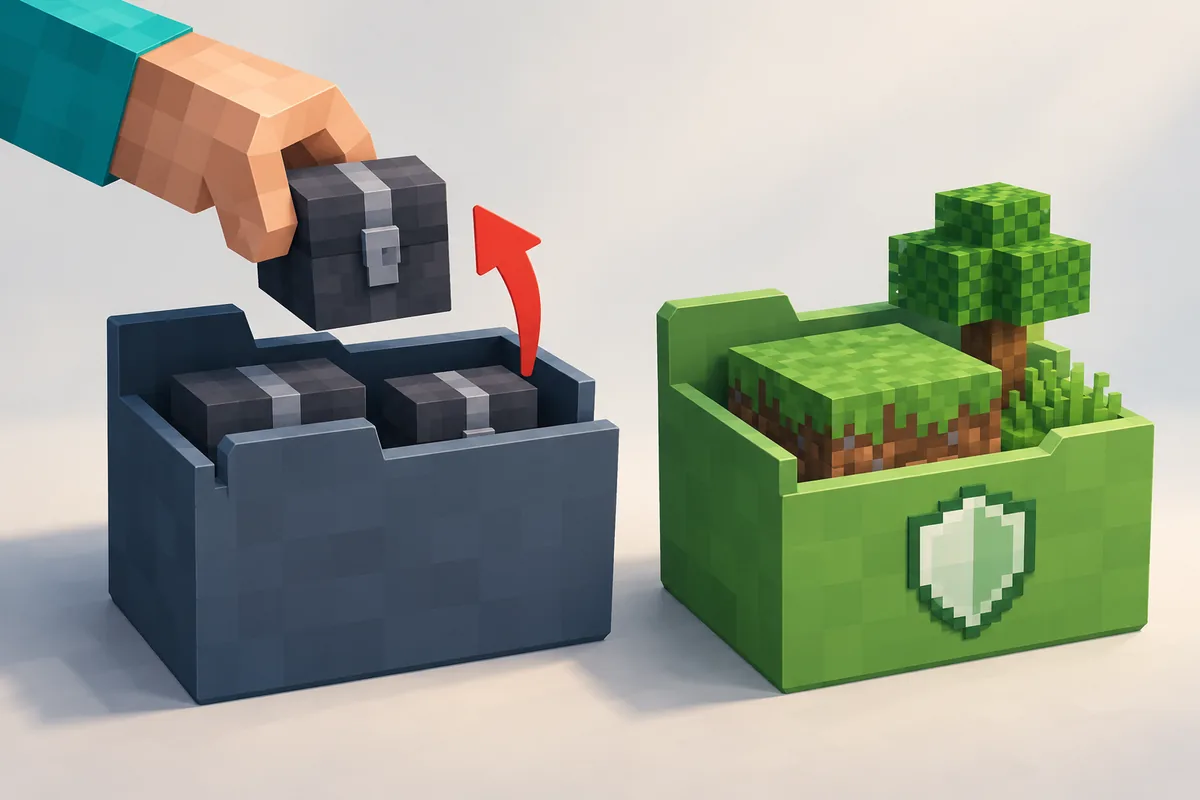
Before uninstalling, back up the right Minecraft profile
Wurst 7 is a mod for Minecraft Java Edition. The safe way to learn how to uninstall Wurst Client is to remove its mod JAR from the correct launcher profile, not to run a Windows uninstaller. Your worlds are stored separately from the mod file, but a quick backup protects against choosing the wrong game directory or deleting more than intended.
Quit Minecraft and the launcher first so files are not in use. In the profile you actually play, copy the saves folder to a safe location, or back up the whole instance if your launcher keeps worlds, resource packs, and mods together. If you have several profiles, label the backup with the profile name and Minecraft version.
- Close every Minecraft game window and launcher instance.
- Back up the active profile's saves before changing files.
- Do not delete the entire .minecraft folder to remove one mod.
Find the mods folder used by your launcher
The default Minecraft directory is only a starting point. The official launcher usually uses the standard game directory, while Prism Launcher, third-party launchers, and custom installations can assign a separate directory to each instance. Open the profile's game-directory setting or use its Open Folder command; that is more reliable than searching for a folder named .minecraft and guessing.
If you use the standard Java launcher, the usual locations are %APPDATA%\.minecraft on Windows, ~/Library/Application Support/minecraft on macOS, and ~/.minecraft on Linux. In a custom instance, use that instance's own mods and saves folders instead. A folder can exist without being the one your current profile launches.
- Windows: open %APPDATA%\.minecraft only when using the default directory.
- macOS: check ~/Library/Application Support/minecraft for the default directory.
- Linux: check ~/.minecraft for the default directory.
- Custom launcher: open the selected instance's game directory.
How to uninstall Wurst Client by removing one mod JAR
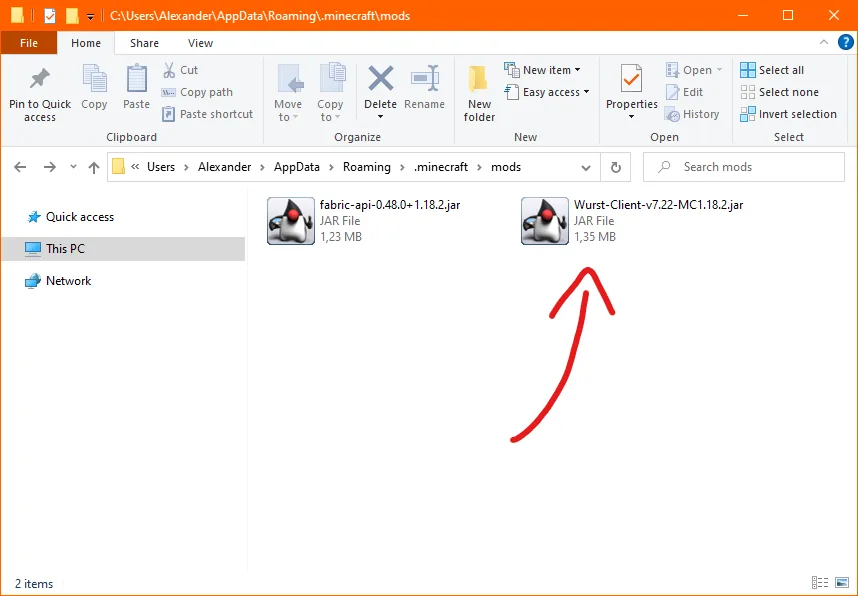
The central step in how to uninstall Wurst Client is to open the active profile's mods folder and identify the file whose name begins with Wurst-Client and ends in .jar. Close the game before moving it. If you are unsure, move the file to a temporary backup folder outside mods instead of permanently deleting it; you can restore it if you picked the wrong profile or file.
The Wurst JAR is the part that loads the client. Remove that single file to uninstall Wurst from this profile. Do not delete every JAR in mods, and do not remove Fabric API just because Wurst used it. Fabric API may still be required by another mod. If you want a vanilla launch, select the vanilla profile in the launcher rather than deleting unrelated files.
The filename can vary by Wurst and Minecraft release. Confirm the identifying Wurst-Client name instead of relying on an old screenshot or a version number copied from another guide.
- Open the game directory for the profile you want to change.
- Open that directory's
modsfolder. - Move only the
Wurst-Client-… .jarfile out ofmods. - Keep Fabric API and other mod files if the profile still uses them.
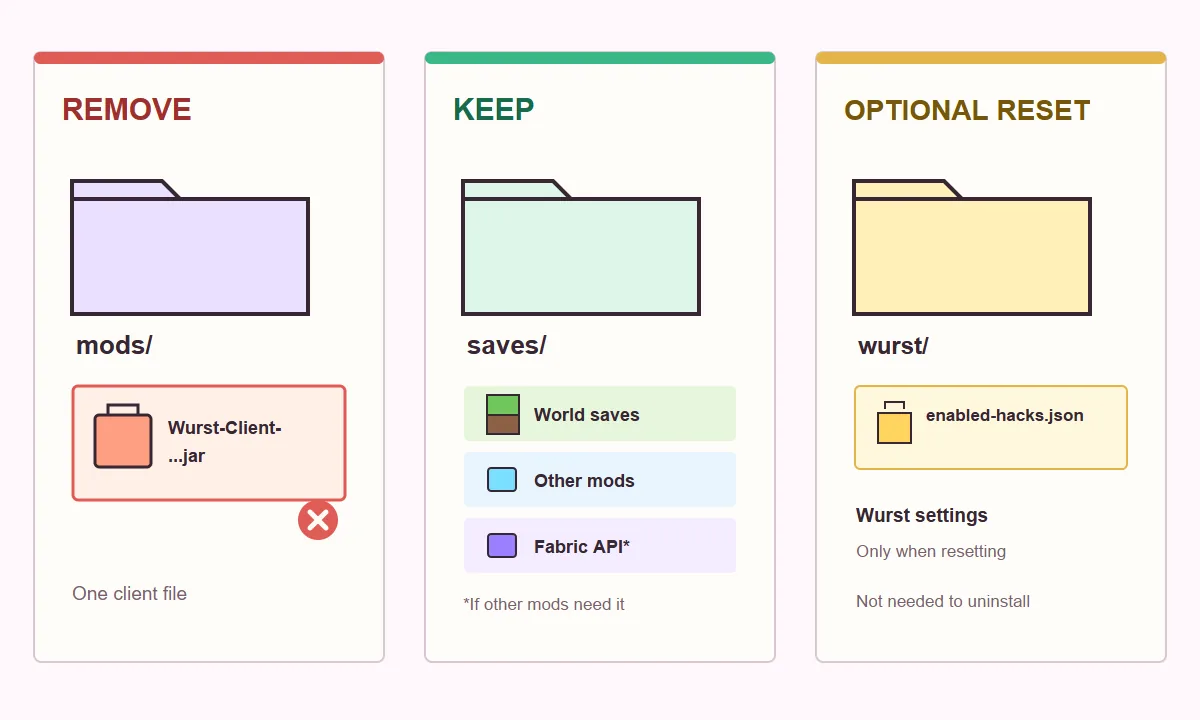
Keep your worlds, Fabric API, and unrelated mods
A Java Edition world is stored under saves, not inside the Wurst JAR. Removing the Wurst file should not remove worlds. Still, keep the backup until you have launched the profile and checked that the expected worlds appear. Some launchers use instance-specific save folders, so check the instance you opened rather than assuming every profile shares one save location.
Other mods are separate JAR files in mods. Leave them in place unless you are intentionally removing them too. Fabric API is a shared dependency used by many Fabric mods, so deleting it can make other mods stop loading even after Wurst is gone. If your goal is a clean vanilla game, use a vanilla launcher profile or create a separate clean instance.
Avoid deleting config, resourcepacks, screenshots, or the whole game directory as a shortcut. Those folders can contain settings and files unrelated to Wurst. Review each folder's purpose before removing anything.
- Keep
savesand verify your worlds before deleting the backup. - Keep Fabric API if another Fabric mod needs it.
- Keep other mod JARs unless you intend to remove those mods separately.
Launch the same profile and verify Wurst is gone
Reopen the exact launcher profile you edited. If you removed the right JAR, Wurst should no longer load in that profile. Check the mod list or in-game Wurst interface, then open a world and confirm it is still present. You can also return to the profile's mods folder and confirm no Wurst Client JAR remains there.
A screenshot of a mods folder is only an example of what files can look like; filenames and versions change. Use your current profile's folder and the Wurst filename, not the old version shown in the example image.
- Confirm you launched the same instance whose folder you edited.
- Confirm the Wurst JAR is outside that instance's mods folder.
- Open your saves list and check the worlds you expected to keep.
- If another mod fails, check whether it still needs Fabric API.
Remove Wurst settings only when you want a reset
Wurst keeps its settings in a separate wurst folder under the Minecraft game directory. The official Wurst uninstall instructions treat this folder as optional: it is not required to remove the mod. Leave it in place if you might reinstall Wurst and want to keep your preferences.
If you want to reset Wurst settings as well, close the game and back up that folder before deleting it. The first-party guide mentions enabled-hacks.json as a setting file that can be removed when troubleshooting a behavior issue. Do not delete the full game directory to reset one file, and do not confuse the settings folder with saves.
mods folder to stop it loading.Troubleshoot a Wurst Client uninstall that did not stick
If you are following how to uninstall Wurst Client but it still loads, the most common cause is editing a different instance from the one you launched. Use the launcher's profile or instance menu to reopen its game directory, then check that exact mods folder. A default .minecraft directory may be unused when the launcher has a custom path.
Look for duplicate Wurst Client JARs in the active folder, including older copies with different version names. Move only those Wurst files out and leave other mods alone. If Wurst is absent from that folder but still appears in game, quit the launcher completely and start the profile again so it does not reuse an already-running process.
If the profile crashes after removal, read the loader's error rather than deleting more files at random. Another mod may need Fabric API, or the profile may still be configured as a Fabric instance. Test a vanilla profile separately. For a modded profile, restore only files you moved and isolate the one causing the error.
If your goal is only to remove Wurst from one profile, other profiles are not automatically changed. Repeat the same careful check for each separate instance you want to clean. For help identifying how the profile was installed, see the Wurst installation guide. Server permission and account consequences are a separate question; see the Wurst safety guide before using a client on multiplayer servers.
Wurst Client uninstall FAQ
Can I uninstall Wurst Client without deleting my Minecraft worlds?
Yes. Worlds are stored in the profile's saves folder, separate from the Wurst JAR. Back up saves, then remove only the Wurst Client JAR from the active mods folder.
Do I need to delete the wurst settings folder?
No. The separate wurst folder stores settings and is optional cleanup. Delete it only if you also want to reset those settings, and keep a backup if you may reinstall Wurst.
Should I remove Fabric API with Wurst?
Only if no remaining mod in that profile requires Fabric API. It is a shared dependency, so deleting it can stop other Fabric mods from loading.
Where is the Wurst Client file located?
It is normally a Wurst-Client JAR in the active instance's mods folder. Custom launchers can use a separate game directory, so open the folder from the profile you actually launch.
Does this uninstall guide apply to Minecraft Bedrock?
No. Wurst Client is a Java Edition mod distributed as a JAR. This folder-based removal process is for a Java launcher profile, not Bedrock add-ons or console editions.
Wurst still appears after I removed the JAR. What should I check?
Check that you removed the file from the same instance you launched, search that active mods folder for duplicate Wurst JARs, then fully close and reopen the launcher.
Sources and related guides
The uninstall steps were checked against Wurst's first-party Wurst 7 instructions and Minecraft's documented default game-directory paths on October 24, 2026.