
Open Wurst Options and choose Keybinds, select Add, choose a key, enter a Wurst action or command, and save. Test the shortcut in a private single-player world. Save a profile before making a large change so you can return to a known layout.
What Wurst Client keybinds do
Wurst Client keybinds connect a keyboard key to one or more actions. Depending on the action, a press can toggle a module, open a Wurst screen, or run a Wurst command. The saved binding is a shortcut; it does not change what the underlying module does or whether a multiplayer server permits it.
Wurst Client keybinds are different from Minecraft's normal controls. Minecraft controls handle actions such as movement, inventory, chat, and perspective. Wurst's Keybind Manager handles shortcuts for Wurst features and commands. If a key already moves your character or opens another program, assigning it to Wurst can make both actions compete for the same press.
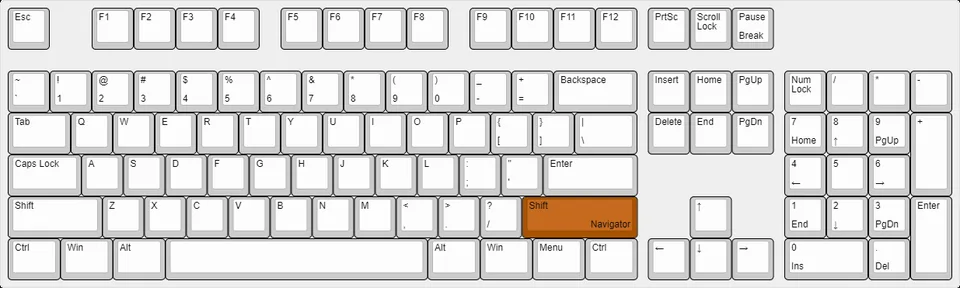
Before changing anything, note how you currently open the Wurst interfaces. In Wurst 7, Right Shift opens Navigator and Right Ctrl opens ClickGUI by default. These defaults can be changed, and a different keyboard layout or another mod can affect which key reaches Wurst. Keep the current route in mind until your replacement shortcut has been tested.
- Write down the current menu shortcuts before editing them.
- Change one binding at a time and test it before adding another.
- Keep Minecraft controls and Wurst actions distinct where possible.
- Use a private test world and a backup profile for larger changes.
Open the Keybind Manager and add a shortcut
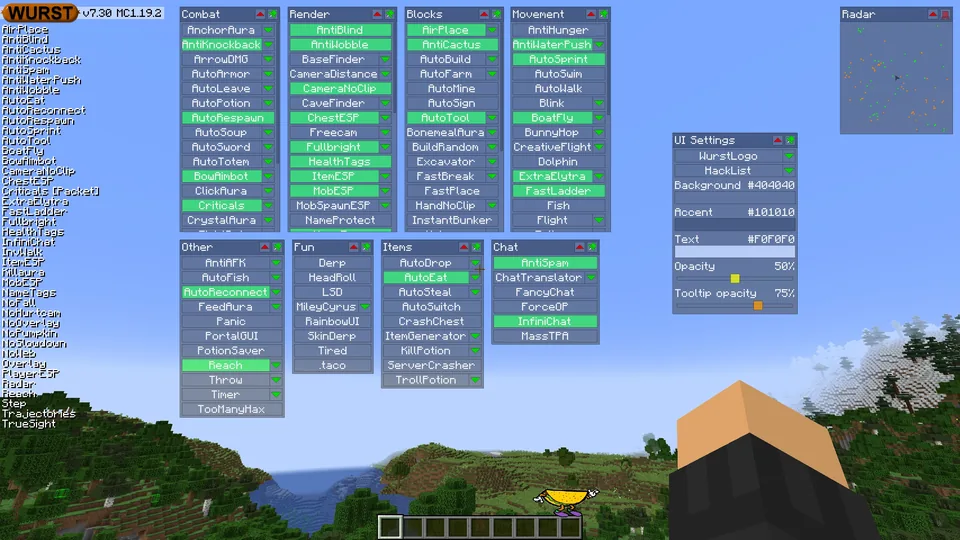
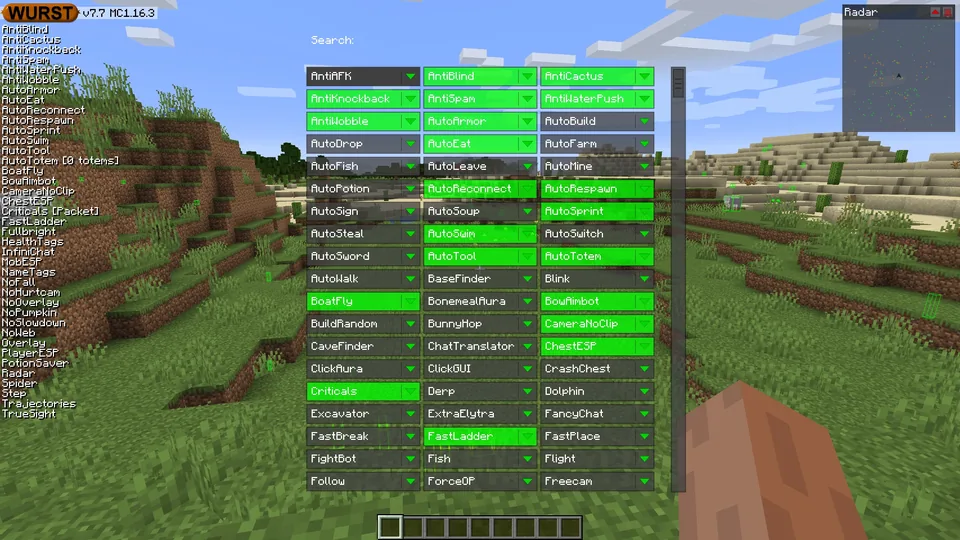
The Wurst Client Keybind Manager is where you configure custom keybinds. The direct route documented by the Wurst Wiki is the Minecraft pause screen, then Wurst Options, then the Keybinds button under Managers. You can also open it from ClickGUI UI Settings or search for Keybinds in Navigator; Navigator itself has more limited keybind controls.
In the manager, choose Add. The Add Keybind screen lets you pick a key with Change Key and enter an action in the Commands field. Click the key-selection control and press the key you want to assign. Enter a Wurst command or a module name, then save. Cancel leaves the manager without applying that new entry.
Check the installed Wurst help or the command reference before saving an unfamiliar action. Do not paste syntax from an old tutorial without confirming that it still exists in your build. The Commands field accepts actions separated by a semicolon; test each action alone before combining them.
| Goal | Binding entry | Check after saving |
|---|---|---|
| Toggle one feature | A supported Wurst module name or toggle command | Press once, check its state, then press again to turn it off. |
| Run a Wurst command | The command with the syntax shown by installed Wurst help | Confirm the local response and check that the command did not target a different feature. |
| Run multiple actions | Known actions separated by semicolons | Test the actions individually before relying on the combined key. |
| Send literal text | Use the documented Wurst say command | Check the chat output in a private world before using it elsewhere. |
Edit, remove, or reset Wurst keybinds
To change an existing entry, select it in the Keybind Manager and choose Edit. The edit screen is similar to Add, but it starts with the current key and commands filled in. Change only the key or action you mean to update, then save and test the result. If no entry is selected, Edit and Remove are unavailable; select a row first instead of assuming the manager is frozen.
Reset Keybinds restores the default keybinds and removes custom bindings from the active list. Wurst displays a confirmation before resetting. The official manager documentation says saved keybind profiles are not deleted by this reset. Even so, save or export a profile before using reset if your custom layout matters; then confirm that the defaults behave as expected before rebuilding the setup.
Choose keys that do not conflict with Minecraft controls
A conflict is most obvious when one press triggers two actions or when Minecraft receives the key instead of Wurst. Check the Minecraft Controls screen, Wurst Keybind Manager, other mods, and any keyboard or overlay utility that may use the same key. Menu keys are particularly easy to overlook because they are used both in-game and while navigating a screen.
Prefer a key that is unused in the context where you play. If a useful key is already assigned to a Minecraft action, either select a different Wurst key or deliberately change the Minecraft control as well. Avoid changing several controls together; if the behavior becomes confusing, you will have fewer clues about the source of the problem.
- Write down the key that is failing and what else it currently does.
- Confirm the intended Minecraft instance and open whichever Wurst menu still responds.
- Inspect duplicate assignments in Minecraft Controls, Wurst, and other active mods.
- Move one assignment to an unused key, save, and test it in a private world.
- If the menu is still unreachable, use the documented reset only after preserving a profile you need.
Save, load, and back up Wurst keybind profiles
Profiles let you keep more than one keybind layout instead of repeatedly editing the active list. In the Keybind Manager, choose Profiles to open the profile screen. Create a named profile for the current set, then create another only when you have a clear use for a different layout. Names such as a Minecraft instance or a control purpose are easier to recognize than a sequence of generic labels.
When a new setup works, save it as a profile before making another large change. Select a saved profile and use Load to replace the active keybind list with that profile. Check the name before loading: this is a configuration switch, not a merge. If you need to keep both layouts, save each one separately before switching.
The official Wurst Wiki documents keybind profiles as JSON files inside the Wurst keybinds folder. On Windows, it gives the location as %appdata%\.minecraft\wurst\keybinds. Wurst instances and operating systems can use different game directories, so do not assume that exact Windows path applies to every launcher. Use the manager's Open Folder control where available to locate the active profile folder for your instance.
- Save a known-good profile before experimenting.
- Use separate names for layouts you want to switch between.
- Loading a profile replaces the active keybind list; save important changes first.
- Back up the JSON file from the active instance's Wurst keybinds folder.
- Test a shared profile in a separate instance before relying on it.
Troubleshoot a Wurst keybind that does not work
If Wurst Client keybinds do nothing, first verify that the entry appears in the manager and that its action matches the syntax shown by Wurst help. Test the key in a private world with no chat field or another menu focused. Check whether the same key is assigned to a Minecraft control, another Wurst action, or another mod. A key event intercepted before it reaches Wurst will not be repaired by changing the command text.
If a profile is missing, use Profiles and Open Folder to check the active Minecraft instance. A profile in another instance's directory will not necessarily appear in the current list. Confirm the JSON file is in the keybinds folder, then reopen the profile screen.
| Symptom | First check | Next step |
|---|---|---|
| Key does nothing | Focus, active instance, duplicate key assignment | Test a free key with one simple known action. |
| Wrong action runs | The saved command and any semicolon-separated actions | Edit the one entry and test each action separately. |
| Profile is missing | Active instance and keybinds folder | Use Open Folder, verify the JSON file, and reopen Profiles. |
| Menu will not open | Right Shift/Right Ctrl defaults and other key handlers | Open another Wurst route, then check or reset bindings after backup. |
Know what a keybind does not change
Keybinds improve access to actions; they do not change the action's permissions, compatibility, or effect. Server owners set their own rules, and many servers prohibit client-side advantages. Read the rules for the server you plan to join and leave restricted features disabled. A successful single-player test is not evidence that a multiplayer server allows the same feature.
Wurst Client keybinds FAQ
How do I open the Wurst Keybind Manager?
Open the Minecraft pause screen, choose Wurst Options, then choose Keybinds under Managers. You can also reach it through ClickGUI UI Settings or by searching Keybinds in Navigator.
How do I change a Wurst Client keybind?
Select the binding in Keybind Manager and choose Edit, or choose Add to create a new one. Pick a key, check the command, save, and test it in a private world.
Where are Wurst keybind profiles stored?
Wurst stores profiles as JSON files in the Wurst keybinds folder. The official wiki gives %appdata%\.minecraft\wurst\keybinds for Windows; other launchers may use another instance directory.
Does Reset Keybinds delete saved profiles?
The official Keybind Manager documentation says reset restores default bindings and removes custom bindings, but it does not delete saved profiles.
Why do old Wurst keybind instructions show different keys?
Key codes changed between Wurst 6 and Wurst 7. Check the manager and keybind reference for the Wurst generation you actually use.
Can I use a Wurst keybind on any multiplayer server?
A shortcut does not change server rules. Read the rules for each server and do not enable features that the server prohibits.
Sources and related guides
The Keybind Manager workflow, profile behavior, and Wurst 6/7 key-code distinction were checked against official Wurst Wiki documentation on November 5, 2026. The interface images are existing Wurst Wiki media captioned with their CC BY-SA attribution.